Creating content that works for everyone means considering how people with different abilities interact with websites and documents. Screen reader users, for example, rely on structure and clear content to navigate and understand what’s on a page, often using only their keyboard. Let’s take a closer look at how we can make our content more accessible by using alt text, headings, and descriptive links.
How Screen Readers Navigate Content
Screen readers typically begin reading from the top of a page and move downward, including reading out alternate text for images. Many users navigate through content using keyboard commands and shortcuts that allow them to jump between page elements such as headings, links, and form fields without having to read everything in order.
That’s why using structured content like headings and descriptive links is so important.
Alt Text for Images
Making images and graphics accessible starts with alternative text (alt text). This short description tells users what an image conveys, which is especially important for those who can’t see it.
Tips for writing good alt text
- Focus on the purpose and context of the image.
- Keep it clear and concise.
- Avoid phrases like “image of” or “picture of.” Screen readers already announce it’s an image.
- Think about how you’d describe the image to someone in person.
Headings for Structure & Navigation
Headings provide structure and a clear hierarchy, making it easier for all users, especially those using screen readers, to scan and understand content. The image below showcases a screen reader rotor, isolating the headings from all the other content.
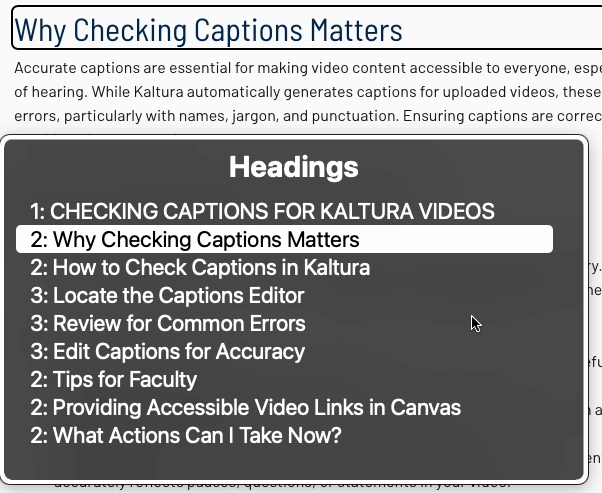
Screen readers allow users to:
- Jump from heading to heading.
- Pull up a list of all headings on a page.
- Understand the importance of each section based on heading level (H1-H6).
Tip: Use headings in logical order; don’t skip levels just for visual appeal.
Descriptive Links
Clear, meaningful links help users understand where they’ll go if they click on it or select it with a screen reader. You should avoid vague phrases like: “Click here,” “Read more,” or “Learn more.” Instead, use phrases like: “Read more about the BSN program” or “Download the application (PDF).” Below we have two examples of a screen reader pulling up the list of links on a page. One page has many links that just state “click here” while the other has more descriptive links.
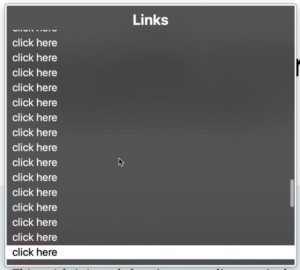
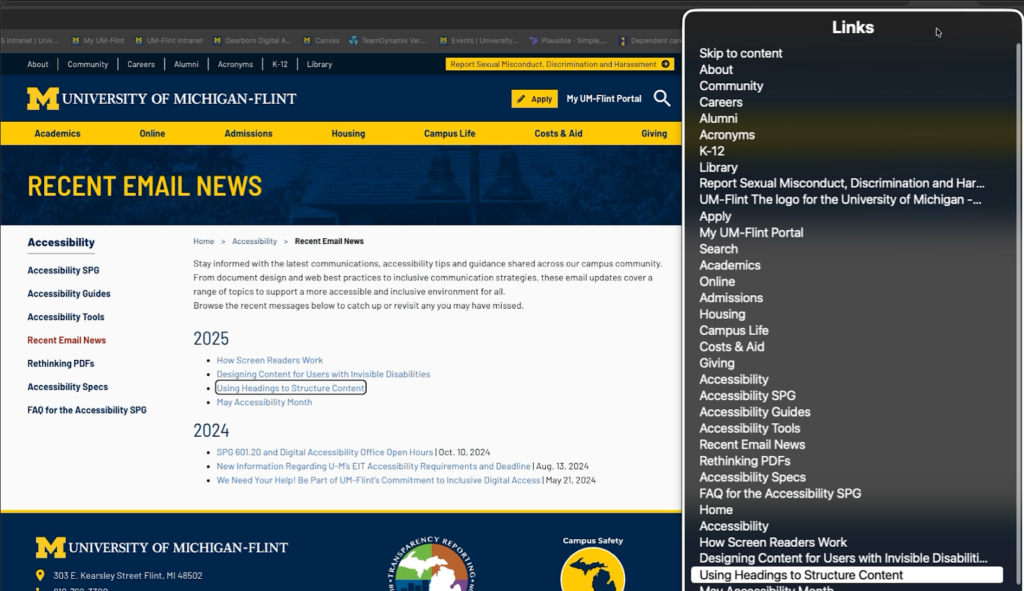
Screen readers let users pull up a list of all links on a page. If multiple links are labeled simply “click here,” users can’t tell where each link leads, making navigation confusing and inefficient. In contrast, descriptive link text, such as “Using Headings to Structure Content” gives meaningful context and allows users of assistive technology to quickly understand and move through a page. Descriptive links create a clearer, more user-friendly experience for everyone.
By applying these accessibility practices such as alt text, headings, and clear links, you’re helping ensure our content is inclusive and usable for everyone.