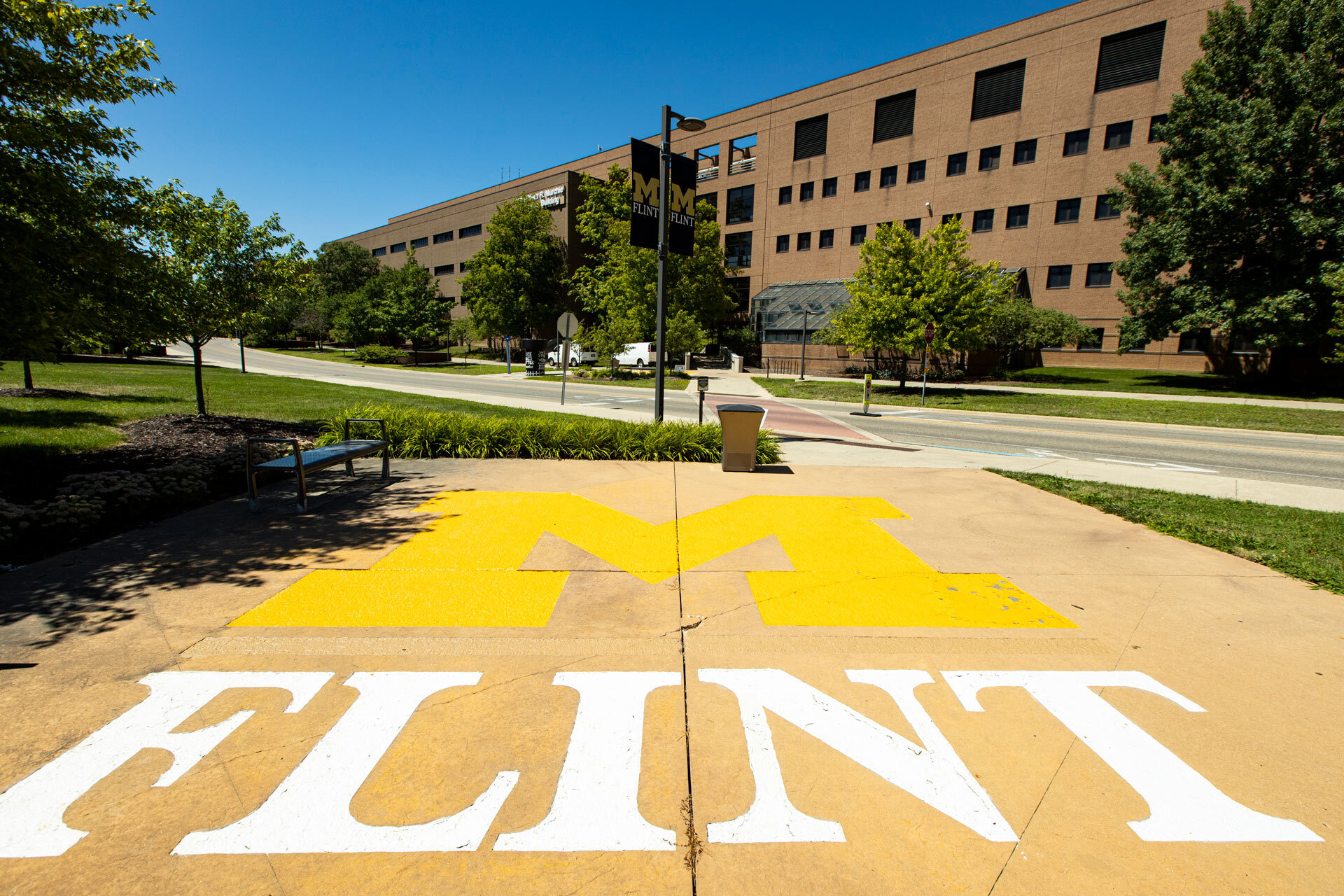
Adding Alt Text
Why Add Alt Text?
Alt text (alternative text or alt tags) provides a description of images for students who use screen readers or those who have visual impairments. It ensures that all learners can understand the content, even if they can’t see the image. Alt text is also helpful if an image fails to load, giving context to users about what the image represents.
What Makes Good Alt Text?
- Concise and Informative: Alt text should provide a brief description of the image’s content or function.
- Avoid Redundancy: Don’t repeat information already provided in the surrounding text.
- Focus on Purpose: Consider why the image is included and what information is essential for the student to grasp.
How to Create Effective Alt Text
Describe the Image’s Content
- Describe what is in the image and focus on its essential elements. It may be helpful to consider how you would describe it to a group of people during a presentation.
- Example: For an image of a bar chart showing student grades, use “Bar chart depicting average student grades by subject.”
Keep It Brief
- Alt text should be clear and succinct. This ensures that screen reader users receive quick and helpful descriptions.
- Example: Instead of “This is an image of a bar chart that shows the different grades students received in various subjects over the past semester,” use “Bar chart of student grades by subject.”
Avoid “Image of” or “Picture of”
- Screen readers already identify the content as an image, so there’s no need to add “image of” or “picture of.” Go straight to describing the key content.
- Example: Instead of “Image of a graduation cap,” use “Graduation cap representing student success.”
Tools and Prompts for Creating Alt Text
Creating accurate alt text is essential for making images accessible to people using screen readers. UM-Flint provides these recommended methods depending on your use case.
For Website Images: Auto-Generate Alternative Text Tool (Recommended)
For all alt text on Blogs, Intranet, UM-Flint Now, and the main website, use the Auto-Generate Alternative Text tool, which is built directly into WordPress by ITS. This tool is integrated into the media library and block editor, making it the fastest and most consistent way to create accessible image descriptions for university web content.
How to access: When you insert and select an image in the WordPress Media Library, you’ll now see an area on the right side panel titled “Auto-Generate Alternative Text.”
Clicking the “Generate” button prompts the system to analyze the image and generate descriptive alternative text, which will automatically appear in the Alt text field after a few seconds.
For Social Media & Other Digital Media: AI Prompt
For alt text needed outside of WordPress, such as social media posts, email graphics or other digital content, use the following prompt with any AI tool (ChatGPT, Google Gemini, U-M GPT, Claude, etc.). This prompt follows WCAG standards for accurate, context-appropriate alt text.
Copy and Paste This Prompt:
You are an accessibility assistant that generates accurate image alt text following these rules:
1. If the image contains text:
   - If decorative or repeated nearby → return an empty string.
   - If functional (e.g., icon) → describe its function.
   - If essential text only in image → include that text.
2. If the image is part of a link or button → describe the action or destination.
3. If the image contributes meaning:
   - If simple → briefly describe in ≤125 characters.
   - If complex (e.g., chart) → summarize essential data.
   - If redundant → return an empty string.
4. If purely decorative or unclear → return an empty string.
5. When the word "Twitter" appears in the image, replace it with "X" in the alt text. Output only the alt text as a plain string with no extra formatting.
How to Use
- Copy the prompt above and paste it into your preferred AI tool.
- Upload or attach your image.
- The AI will return appropriate alt text based on the image content and context.
Tip: If the AI returns an empty string, the image is likely decorative and doesn’t require alt text (use alt=”” in your HTML or leave the alt text field empty).
Google Lens
Google Lens can assist in generating alt text by identifying objects and extracting text within images. Google Lens is free to use. Here’s how to use Google Lens on a desktop:
- Access via Web Browser: Open Google Images in your web browser and search for the image you want to describe.
- Right-Click and Use Google Lens: Right-click the image and select “Search image with Google Lens” (this option may vary slightly depending on your browser and settings).
- Analyze the Image: Google Lens will open a side panel displaying information about the objects and elements within the image.
- Craft the Alt Text: Use the “Add to your search” field ” to write “describe this image.” Google AI will write a long description.
- Implement on Your Site: Make edits to the description including any verbiage that says “image of…” Once you are satisfied with the description, copy and paste it into the alt tag area.
Example of how to use Google Lens Alt Text Description
Tip: Using Google Lens on a desktop allows you to easily access and analyze web images without switching devices, making it a convenient choice.
By utilizing tools like the Auto-Generate Alternative Text Tool, AI prompts and Google Lens, you can efficiently create alt text that enhances accessibility for all users, ensuring that your web content is inclusive and compliant with accessibility standards.
Examples of Descriptive vs. Non-descriptive Alt Text
Example 1

- Non-descriptive: “Image of a cat.”
- Descriptive: “Orange tabby cat sleeping on a windowsill.”
Example 2
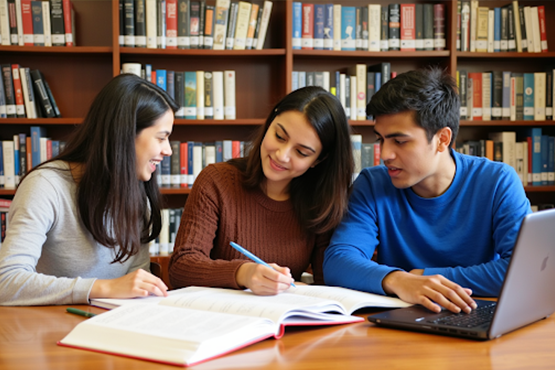
- Non-descriptive: “Picture of students.”
- Descriptive: “Three students studying together in the library.”
Tips for Faculty
- Decorative Images: If an image is purely decorative and doesn’t convey information relevant to the content, mark it as decorative. This way, screen readers will skip it, reducing noise for people.
- Context Matters: Describe the image in a way that adds value. Think about what you want students to learn or understand from the image.
What Can I Do Now?
Take immediate steps to enhance the accessibility of your content. Start by reviewing all images in your course materials, including lecture slides, assignments, readings, and any embedded multimedia content, to ensure they have meaningful alt text. Alt text should help students using screen readers understand the visual elements by being concise and conveying the essential purpose of each image without repeating information already presented in the surrounding text. For purely decorative images, mark them accordingly so they do not distract learners. When reviewing your course materials, use accessibility checkers, like the Canvas built-in tool, Microsoft Accessibility Checker, Google Accessibility Checker, Adobe Acrobat’s Accessibility tool, or third-party tools such as WAVE or Axe, to verify that all images have appropriate alt text and to identify any issues. By integrating these practices now, you can create a more inclusive learning environment where every student has equal access to the course content.